Shortshock Guide · Channel connection guides
YouTube connection guide
Connect a YouTube channel to Shortshock to publish videos and Shorts and track how your channel and videos perform.
Before you start
- You need a Google account that has a YouTube channel. A Google account without a channel cannot be connected, so create a channel on YouTube first.
- For a channel run as a Brand Account, pick that Brand Account on the Google account chooser.
Number of accounts you can connect
How many accounts you can connect per channel depends on your workspace plan. When you reach the limit, a “Quota Exceeded Connection Limit” notice appears; upgrade the plan or delete an existing account before adding another.
How to connect
- Sign in to Shortshock and open the “Connection” menu of the team you want to connect the account to.
- On the YouTube card, press “Add Account” to go to YouTube.
- On the Google account chooser, pick the account (or Brand Account) that owns the channel, then select every checkbox on the consent screen and continue.
- Once you approve, you are returned to the Connection screen automatically and the account appears on the YouTube card.
Accounts are connected per team. To use the same account in another team, connect it once more from that team's Connection menu. To connect several accounts on the same channel, repeat the steps for each account.
Screen-by-screen steps
After you press Add Account, Google shows the screens below in order. Pay particular attention to step 2, where you pick the channel, and step 4, where you select permissions.
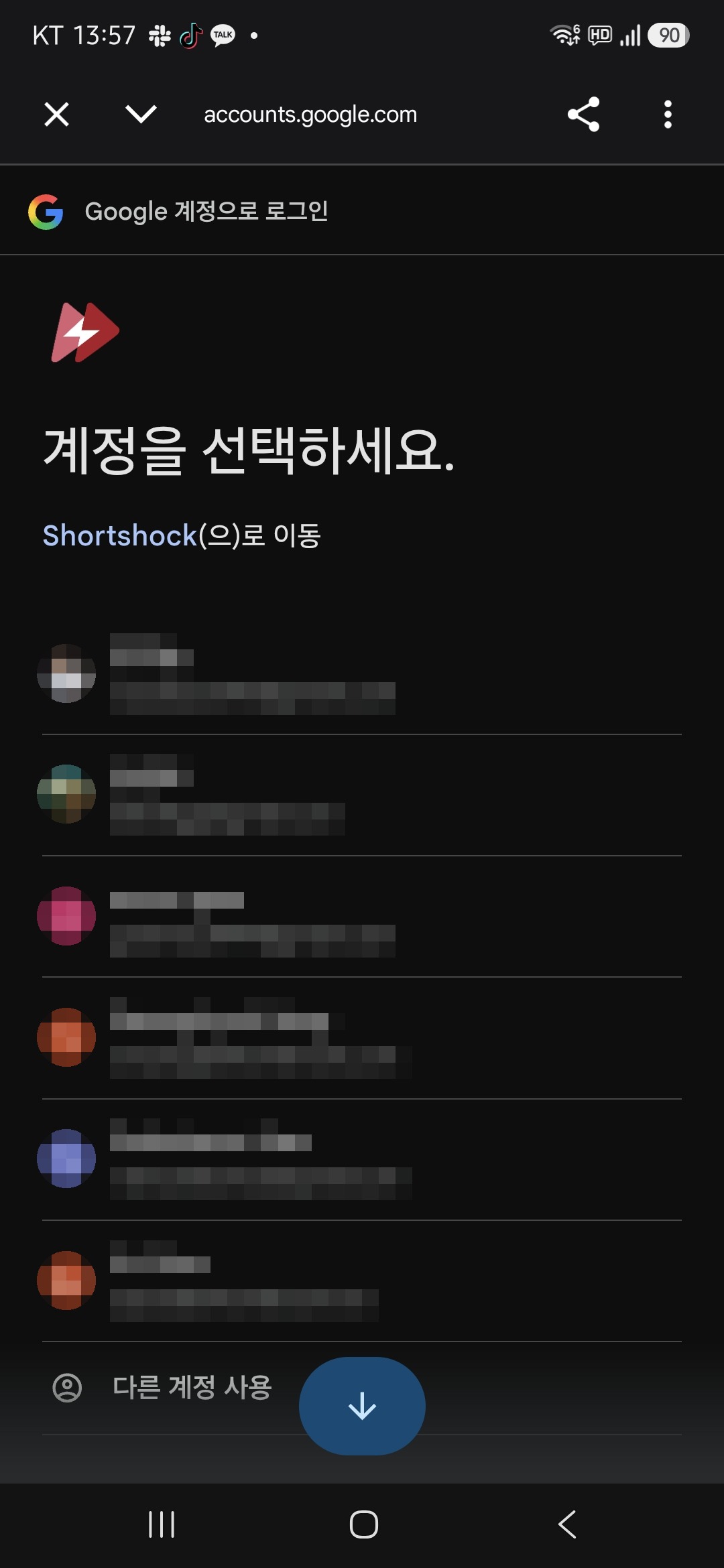
1.On the “Choose an account” screen, pick the Google account that owns the YouTube channel you want to connect. If it is not listed, choose “Use another account” at the bottom and sign in.
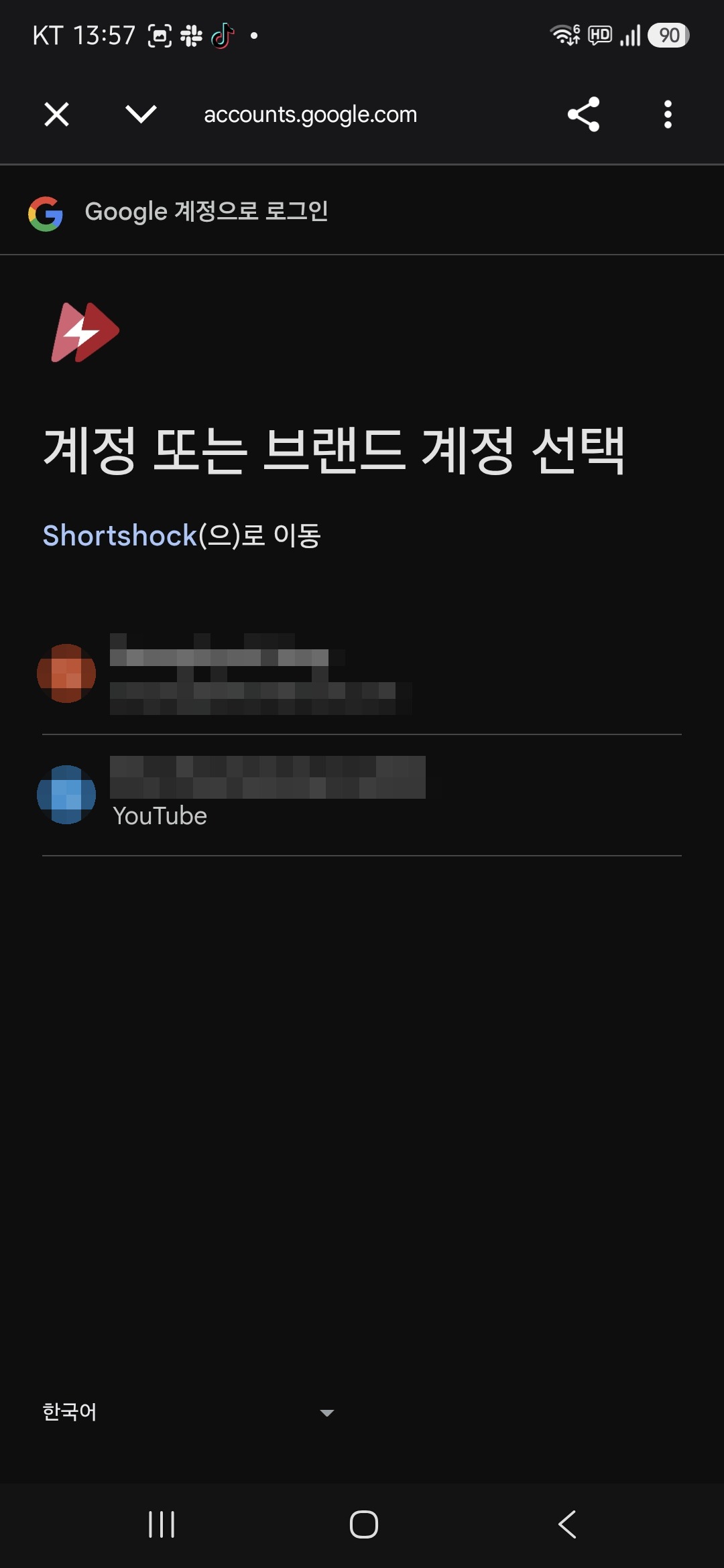
2.If the “Choose your account or a brand account” screen appears, pick the channel you want to connect. An entry with “YouTube” under its name is a Brand Account channel. Google accounts without a Brand Account may not see this screen.
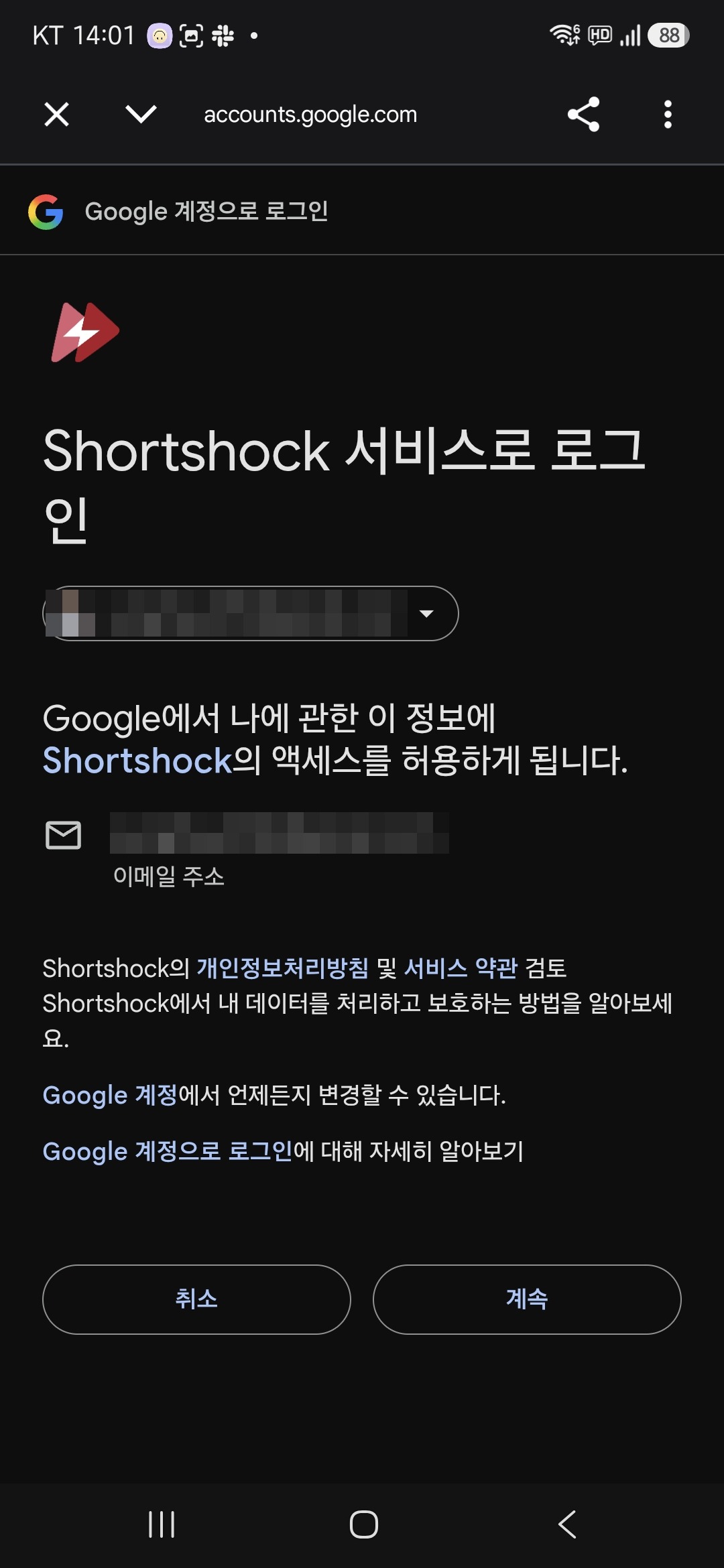
3.On the “Sign in to Shortshock” screen, check that the selected account is correct and press “Continue”.
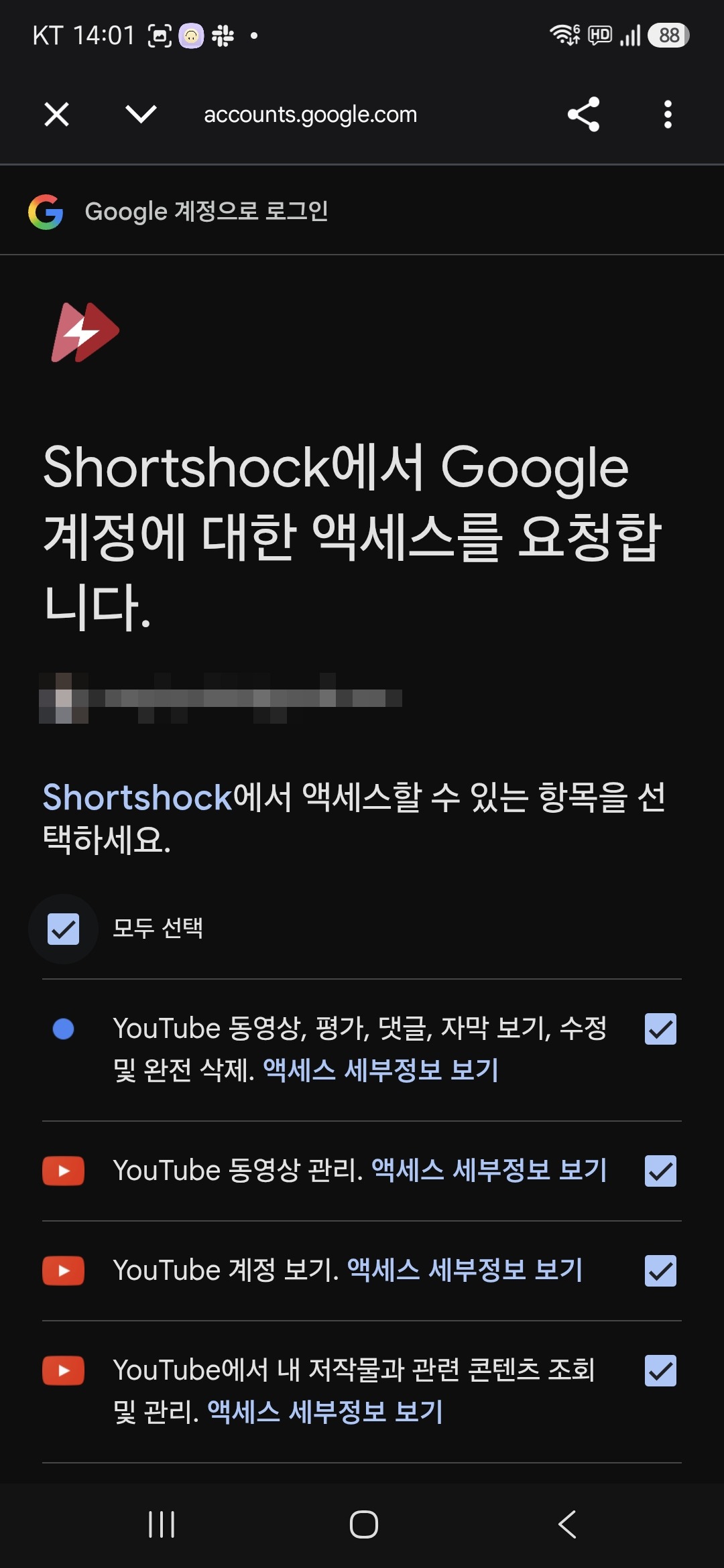
4.On the permission request screen, check “Select all”, then scroll down and press “Continue”.
Always check “Select all”
If you continue with any checkbox cleared, publishing videos or reading statistics will not work. If you already connected with only some selected, delete the account and connect it again.
Requested permissions
While connecting, Shortshock asks YouTube for the permissions below. They cover publishing and performance tracking; if you decline some of them, the related features may not work.
| Permission | Used for |
|---|---|
youtube | Manage the YouTube account (edit video details, and more) |
youtube.readonly | Read channel and video information |
youtube.force-ssl | Read and manage videos, comments, and more |
youtube.upload | Upload videos |
yt-analytics.readonly | Read YouTube Analytics reports (views, viewer statistics, and more) |
youtubepartner | Read and manage content of YouTube partner channels |
userinfo.email | See the email address of the connected Google account |
Troubleshooting
You approved, but no account was added
The connection fails if the selected Google account has no YouTube channel. Check that you picked an account (or Brand Account) that owns a channel.
Publishing or statistics fail
This happens when some checkboxes were cleared on the consent screen. Delete the account, then connect it again with every permission selected.
Nothing happens after pressing Add Account
If you see “Failed to get the account connection URL”, wait a moment and try again. On Android, if you are not returned to the app after connecting, set Chrome as your default browser and try again.
You received an “Account Connection Disconnected” notification
The connection is dropped when you change your password on YouTube or revoke Shortshock's access. Connect the same account again from the Connection menu to see its existing content and analysis results again.
Disconnecting
In the Connection menu, open the options menu of the account you want to remove and choose “Delete Account”.
- After deletion you can no longer see that account's content and analysis results. Connecting the same account again brings the existing data back.
- The history of uploads made through Shortshock is kept after deletion.
- To fully revoke the access granted on YouTube, remove the Shortshock app connection yourself in your YouTube account settings.