Shortshock Guide · Channel connection guides
Threads connection guide
Connect a Threads account to Shortshock to publish posts and track how your account and posts perform.
Before you start
- You need an account with a Threads profile. If you only have an Instagram account and have not started Threads yet, create the profile in the Threads app first.
- This is separate from the Instagram connection. Even for the same account, Instagram and Threads are connected individually.
Number of accounts you can connect
How many accounts you can connect per channel depends on your workspace plan. When you reach the limit, a “Quota Exceeded Connection Limit” notice appears; upgrade the plan or delete an existing account before adding another.
How to connect
- Sign in to Shortshock and open the “Connection” menu of the team you want to connect the account to.
- On the Threads card, press “Add Account” to go to Threads.
- On the Threads login screen, sign in with the account you want to connect, then review and allow the permissions Shortshock requests.
- Once you approve, you are returned to the Connection screen automatically and the account appears on the Threads card.
Accounts are connected per team. To use the same account in another team, connect it once more from that team's Connection menu. To connect several accounts on the same channel, repeat the steps for each account.
Screen-by-screen steps
After you press Add Account, Threads shows the screens below in order. If your browser is already signed in to Threads, the login screen in step 1 may be skipped.
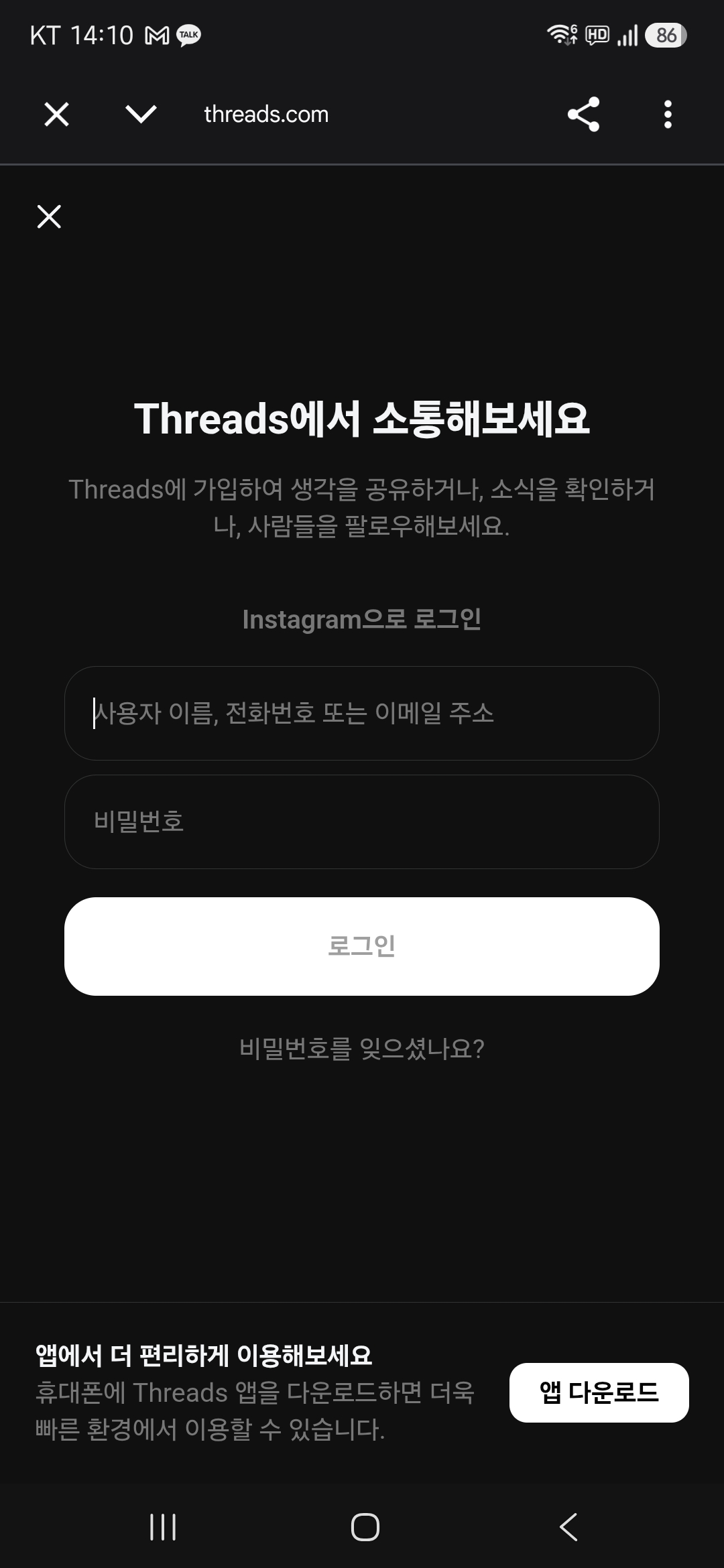
1.On the “Log in with Instagram” screen, sign in with the profile you want to connect. The password is the same as the account password.
Enter the name of the profile you want to connect as the username
Do not enter the main account ID. Enter the name of the profile under that account (the sub-profile) that you want to connect. This is the step people get wrong most often.
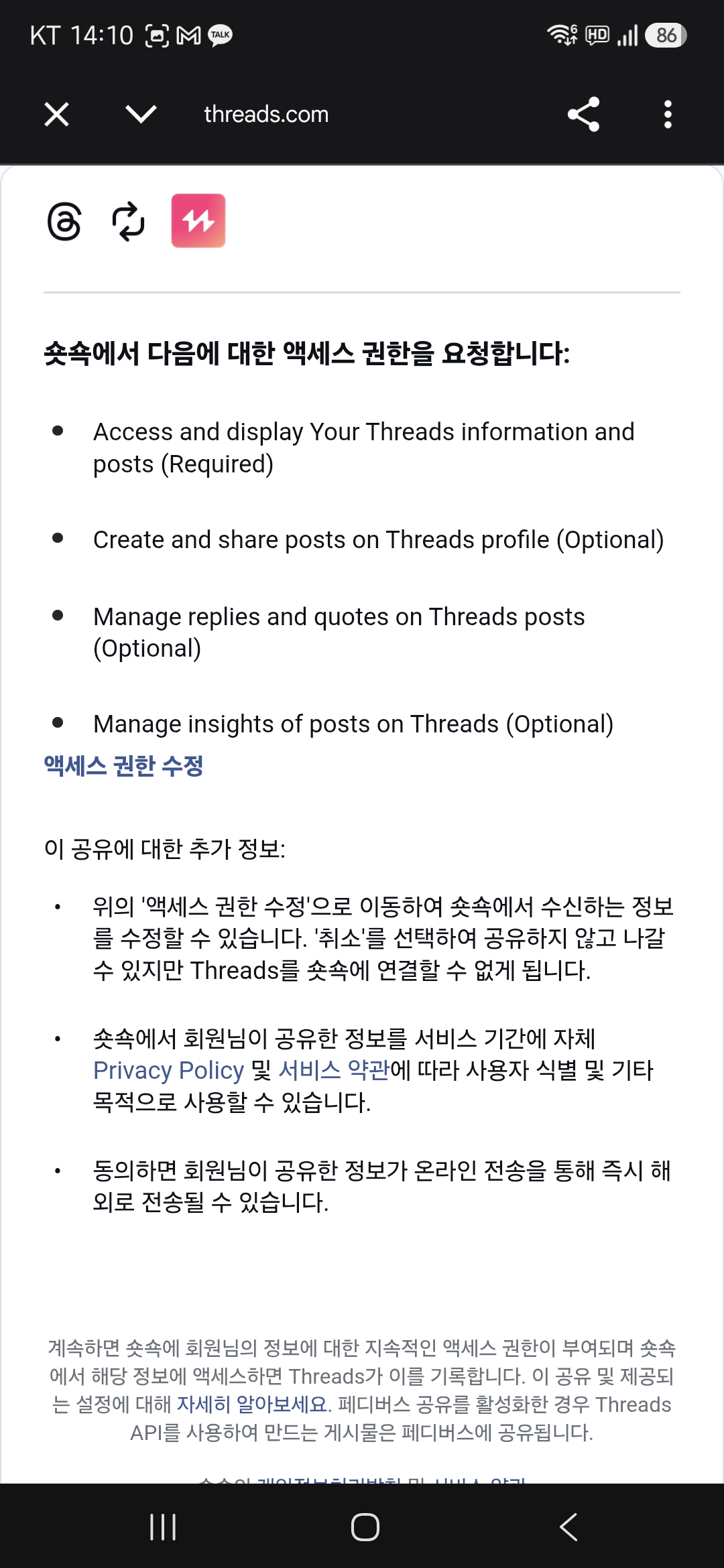
2.Review the permissions Shortshock requests. Leave them as they are: turning off the optional items under “Edit access” can stop publishing or statistics from working.
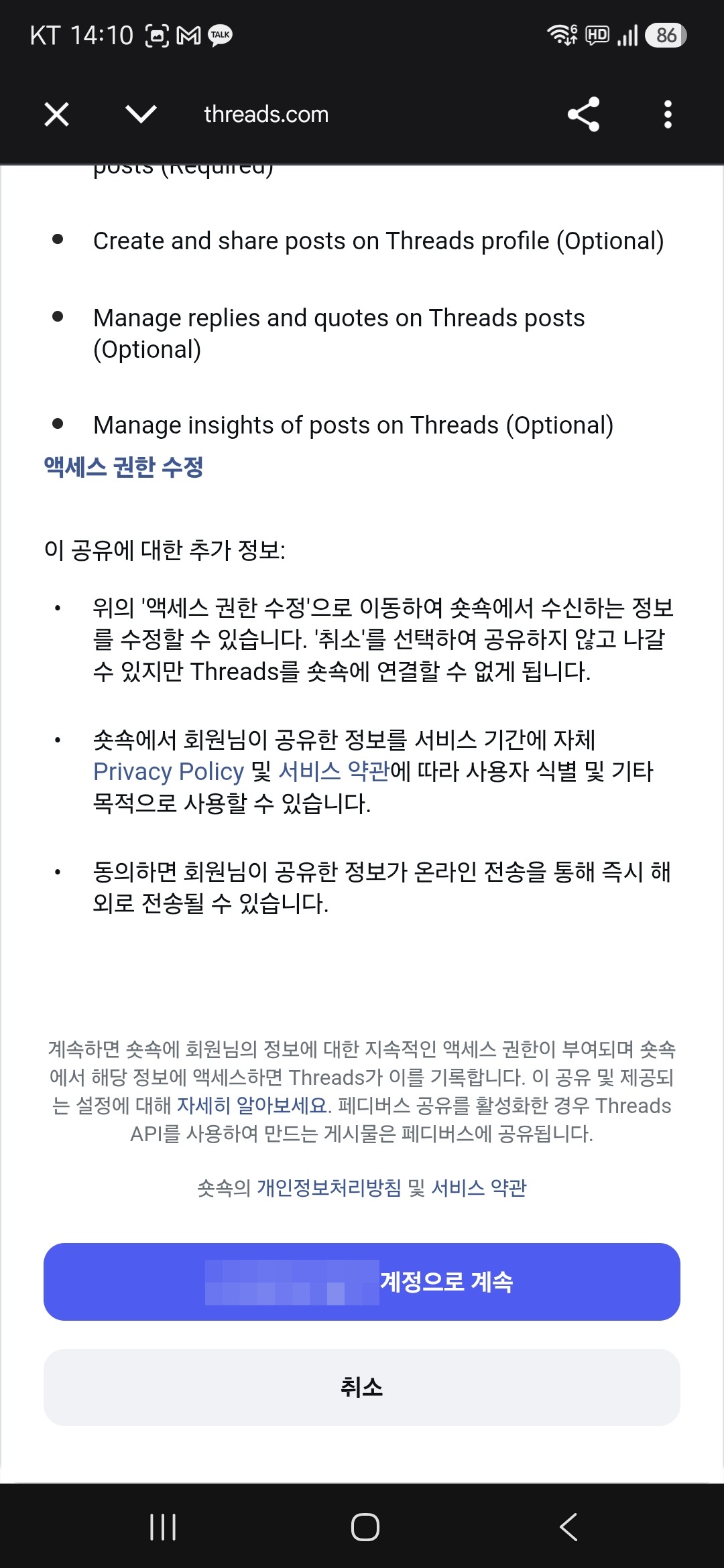
3.Scroll down, check that the profile name on the button is the profile you want to connect, then press “Continue as (profile name)”.
Requested permissions
While connecting, Shortshock asks Threads for the permissions below. They cover publishing and performance tracking; if you decline some of them, the related features may not work.
| Permission | Used for |
|---|---|
threads_basic | Read profile information and the list of posts |
threads_content_publish | Publish posts |
threads_manage_insights | Read account and post insights |
threads_manage_replies | Read and manage replies |
Troubleshooting
A different account gets connected
The connection uses the Threads profile already signed in to your browser. If the name on the “Continue as (profile name)” button is different, cancel, log out on threads.com, and sign in again with the name of the profile you want to connect.
Nothing happens after pressing Add Account
If you see “Failed to get the account connection URL”, wait a moment and try again. On Android, if you are not returned to the app after connecting, set Chrome as your default browser and try again.
You received an “Account Connection Disconnected” notification
The connection is dropped when you change your password on Threads or revoke Shortshock's access. Connect the same account again from the Connection menu to see its existing content and analysis results again.
Disconnecting
In the Connection menu, open the options menu of the account you want to remove and choose “Delete Account”.
- After deletion you can no longer see that account's content and analysis results. Connecting the same account again brings the existing data back.
- The history of uploads made through Shortshock is kept after deletion.
- To fully revoke the access granted on Threads, remove the Shortshock app connection yourself in your Threads account settings.